Integrate Consultmed with Best Practice via Halo Connect
Background
Halo Connect is a program used by Best Practice (Bp) to enable seamless communication between your Bp database and third party programs like Consultmed. Halo Connect is automatically bundled with Bp Premier updates.
Where do I begin?
This guide is split into three sections. You may not need to complete all sections- use the questions below to determine in which section to begin.
1. Has your practice given permission for your Bp database to communicate with Consultmed via the ‘Setup third-party integrations’ window in Bp yet? (Accessed via Setup > Configurations > Database)
- Yes: Goto question 2
- No or unsure: Start in Section 1
2. Have you been given or generated a pairing code enabling you to connect Consultmed to your Bp database?
- Yes: Start in Section 3
- No: Start in Section 2
Section One (3 minutes)
Give permission for your practice’s Best Practice database to communicate with Consultmed (one time setup per practice)
NOTE: This step requires a Bp user with access to ‘Setup/Configurations’ permission in Bp. In most cases, a practice manager or practice owner should have this access, but a tenant GP may not. If you are unsure, check by going to the Bp Home Screen and clicking ‘Setup’ in the top toolbar. If ‘Configuration’ is visible, you can proceed. If not, you will need to ask someone in your practice who does have access to do this section for you.
Steps
1. Open Best Practice Home Screen
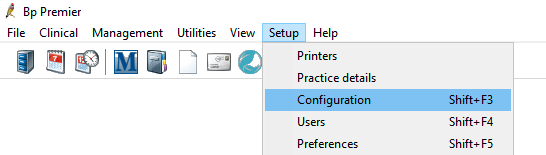
2. From the top toolbar, select ‘Setup’
3. Select ‘Configuration’. (Note if Configuration is not visible, you do not have sufficient permissions in your Bp user account. We recommend sending this guide to your practice manager or owner to help you complete Section 1)
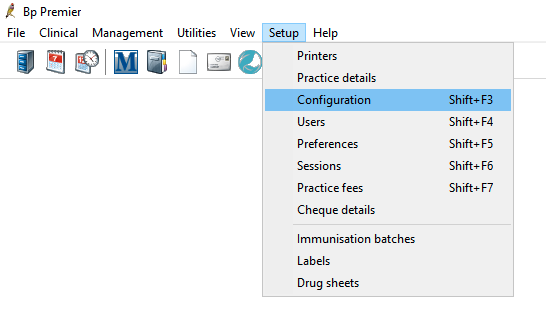
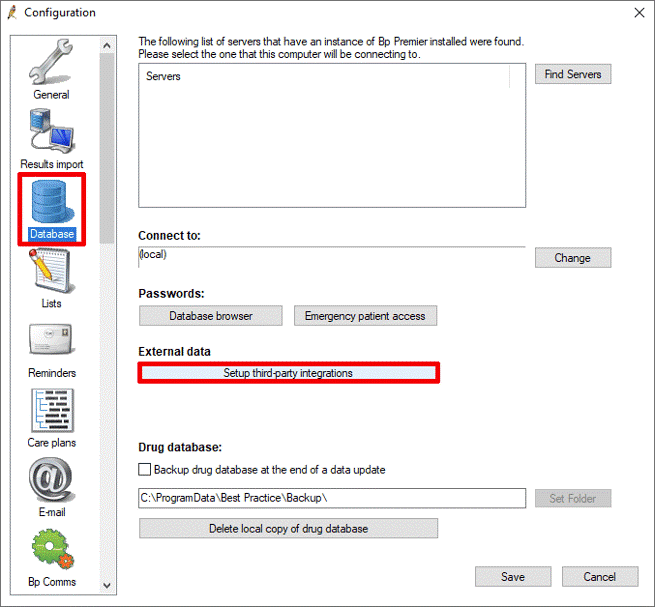
4. Select ‘Database’ from the left-hand side menu
5. Click on ‘Setup third-party integrations’
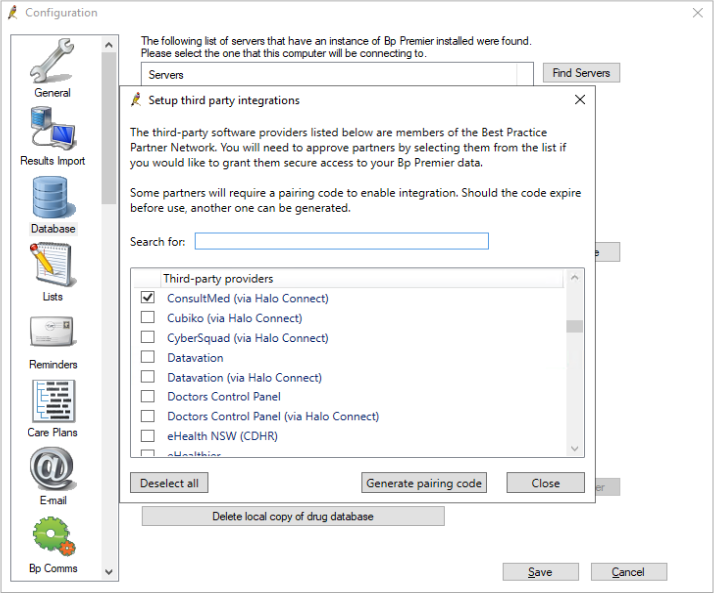
6. Scroll through the list and tick the checkbox next to ‘Consultmed (via Halo Connect)’
7. Click ‘Yes’ to enable and allow integration
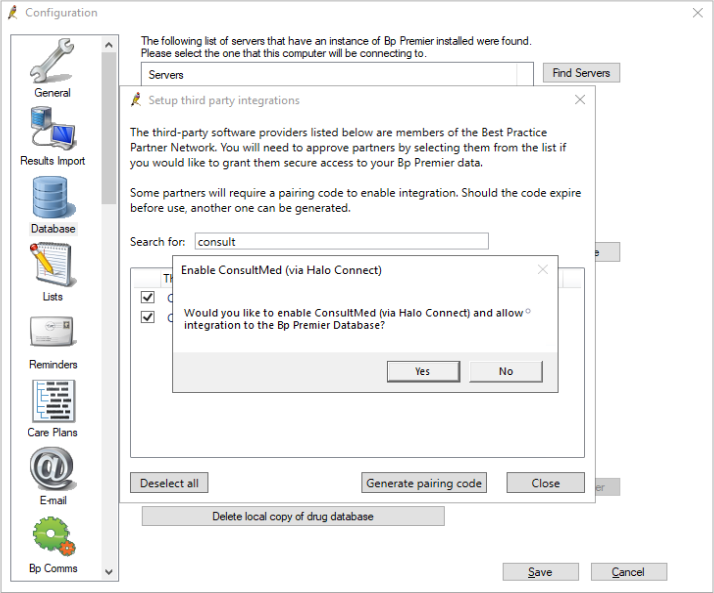
8. Section 1 completed. Go to Section 2.
Section Two (3 minutes)
Obtain your Bp Site ID and generate a pairing code
NOTE: This step requires a Bp user with access to ‘Setup/Configurations’ permission in Bp. In most cases, a practice manager or practice owner should have this access, but a tenant GP may not. If you are unsure, check by going to the Bp Home Screen and clicking ‘Setup’ in the top toolbar. If ‘Configuration’ is visible, you can proceed. If not, you will need to ask someone in your practice who does have access to do this section for you.
1. Login to Bp and navigate to ‘Setup third-party integrations’ (Bp Home > Setup > Configuration > Databases > Setup third-party integrations).
- For a detailed guide to this follow Steps 1-5 in Section 1
- If ‘Configuration’ is not visible when you click Setup, you do not have sufficient permissions in your Bp user account. Your Practice Manager or Practice Owner should be able to do this step instead.
2. Select ‘ConsultMed (via Halo Connect)’ taking care not to uncheck the box.
3. Click “Generate pairing code’
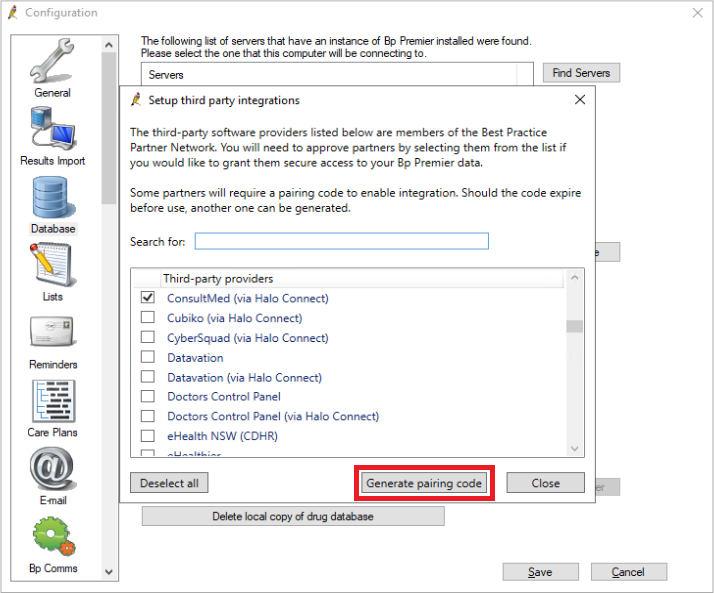
4. If a popup appears asking if you wish to Enable Consultmed (via Halo Connect) and allow integration select Yes.
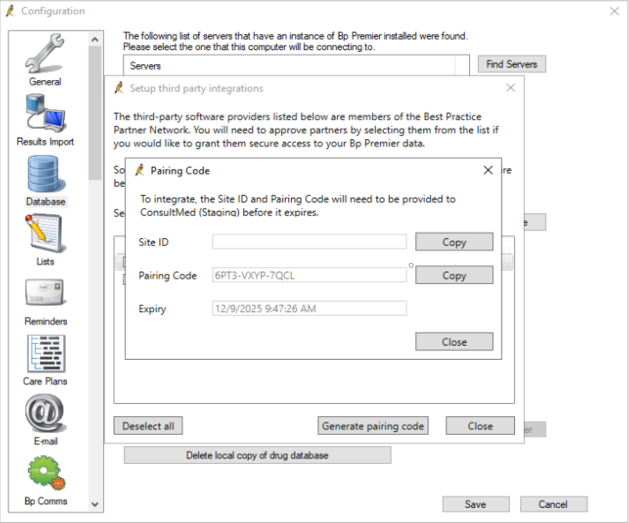
5. A window with your Site ID and Pairing Code should come up. Take note of both as you will need it for Section 3
Section Three (4 minutes)
Link your Consultmed user account to your Bp database
Ensure you have your Pairing Code and Bp Site ID on hand from Section 2.
1. Log into your Consultmed account
2. Select the ‘Settings’ icon in the top right corner of the dashboard (appears as a ‘cog wheel’ icon)
3. Select Software Integrations
4. Select Configure to the right of the Best Practice logo
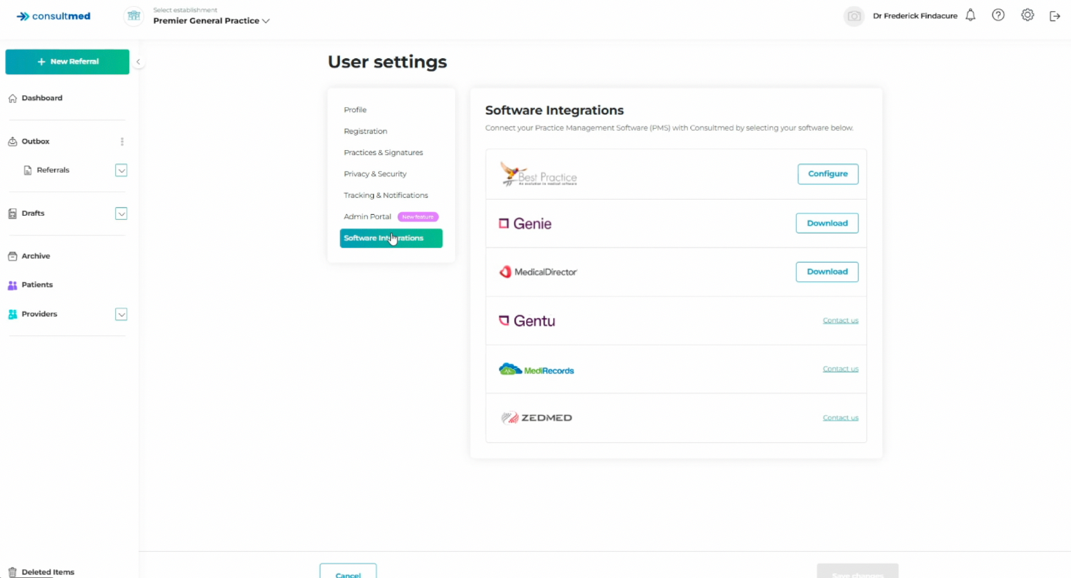
5. Enter your Bp Site ID and Pairing Code. If you do not have this yet, goto Section 2.
6. Enter your First Name and Last Name, exactly as it appears in Best Practice. This is your secondary identifier and is required to connect with Halo and the correct database in Best Practice.
7. Enter the first 6 digits of your Provider Number (This is for GP Specialist users only. Ignore this step if this field is not visible)
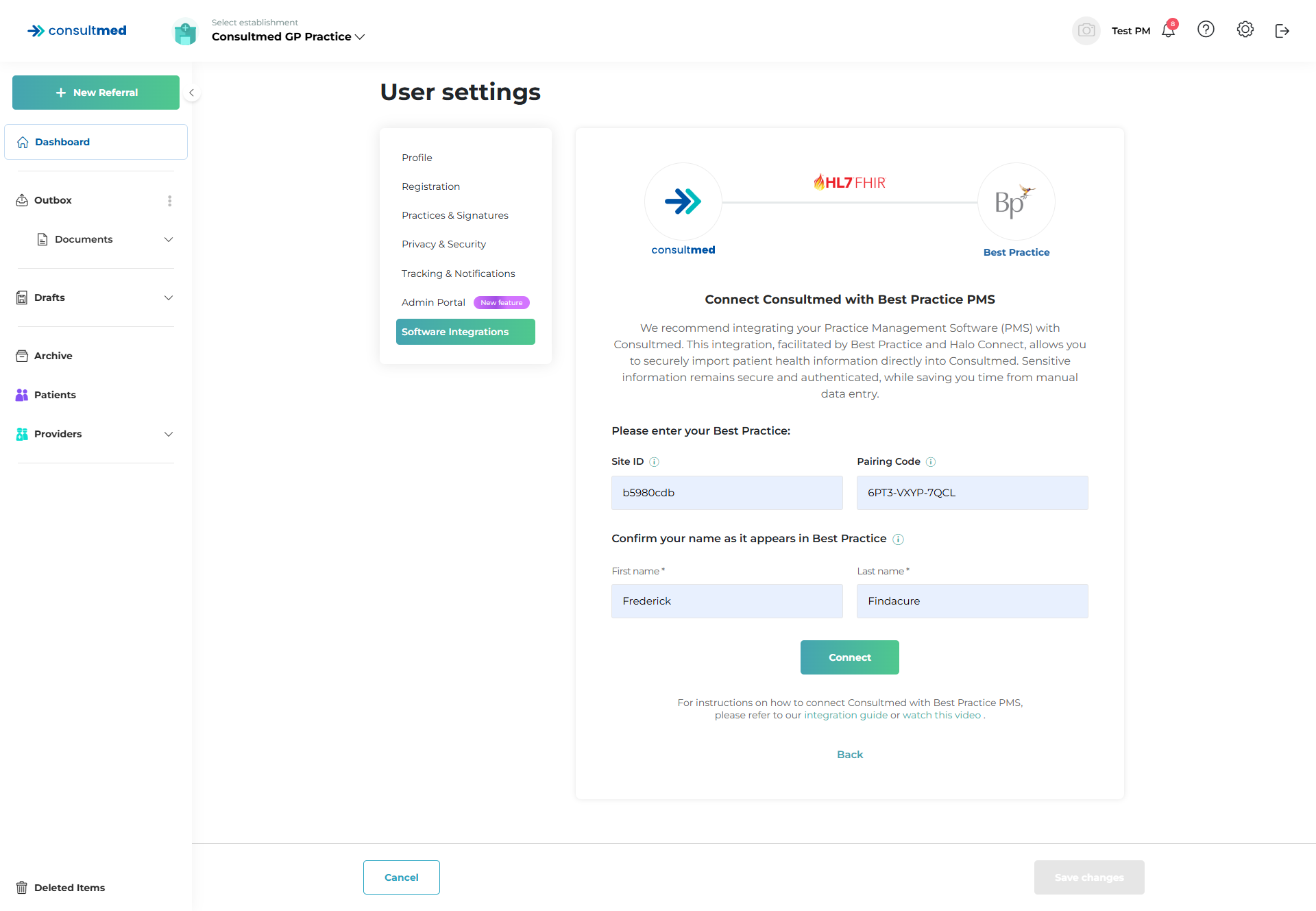
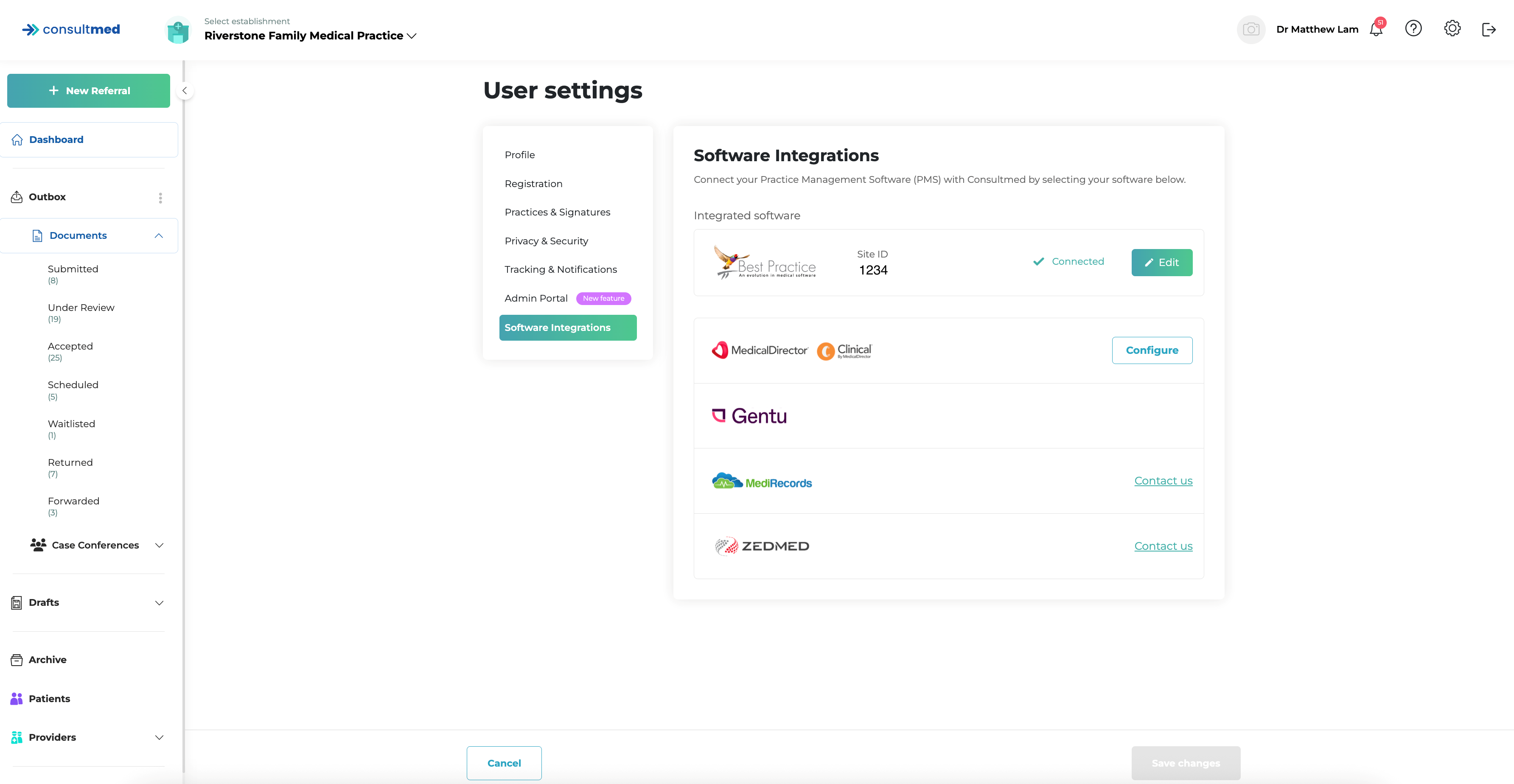
8. Click Connect to complete the integration. If successful you should see your Site ID and a green tick with the words Connected next to the Bp icon like in the screenshot below
Sending a referral using the integration
Create a New Referral
Watch Consultmed x Bp/Halo Integration video (Timestamp 3:08)
Create a New Referral
- Log into Consultmed and select + New Referral
- Filter by categories to refine your search and select a healthcare provider from the Directory of Services
Import Patient Data from Best Practice
- Select Import Patient Data to initiate a search of patient details in your instance of Best Practice
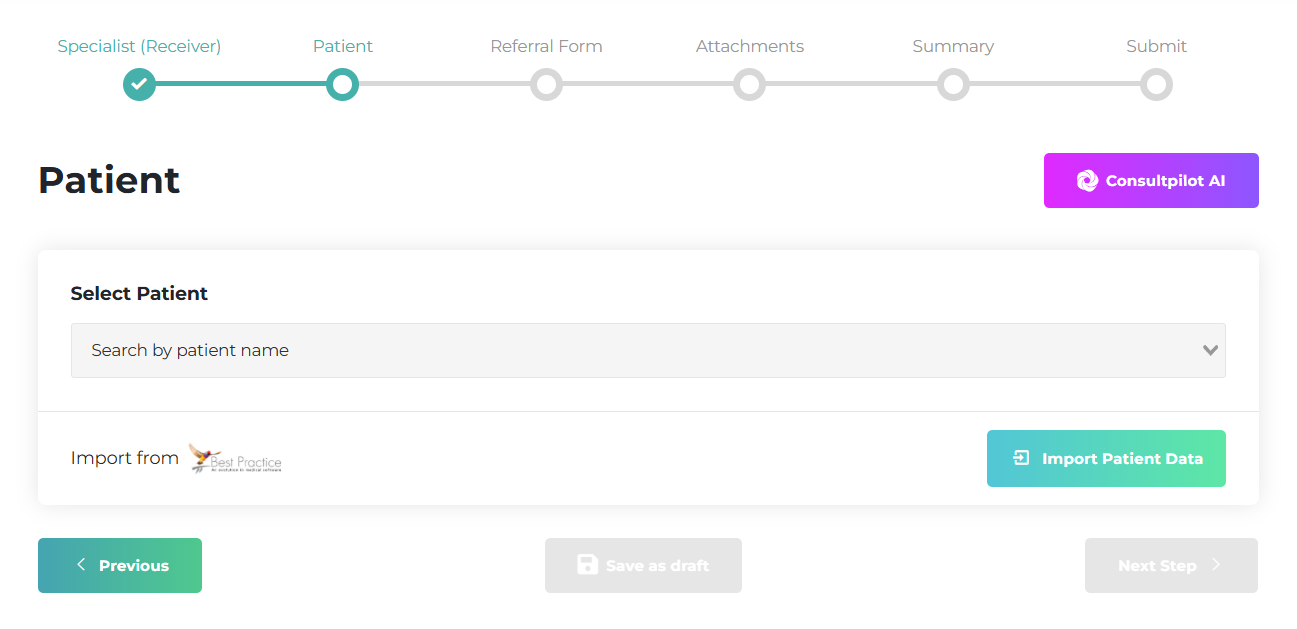
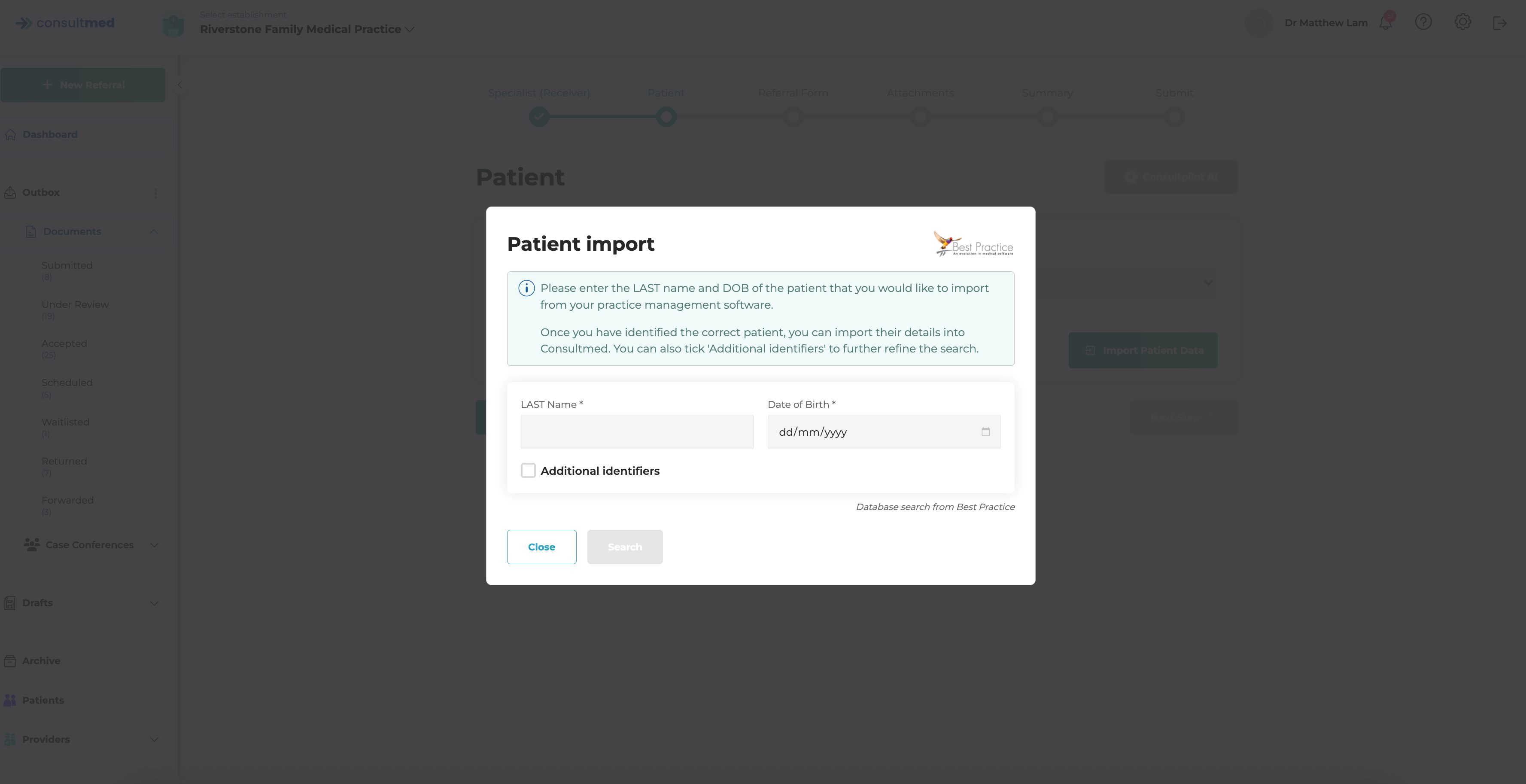
- Enter the patient’s Last Name and Date of Birth and select Search to retrieve all relevant patient records from Best Practice
- Select the appropriate patient match and click Import to automatically populate the referral form with the patient details stored in Best Practice
- Remember to review and confirm the imported patient details
Import Clinical Data from Best Practice
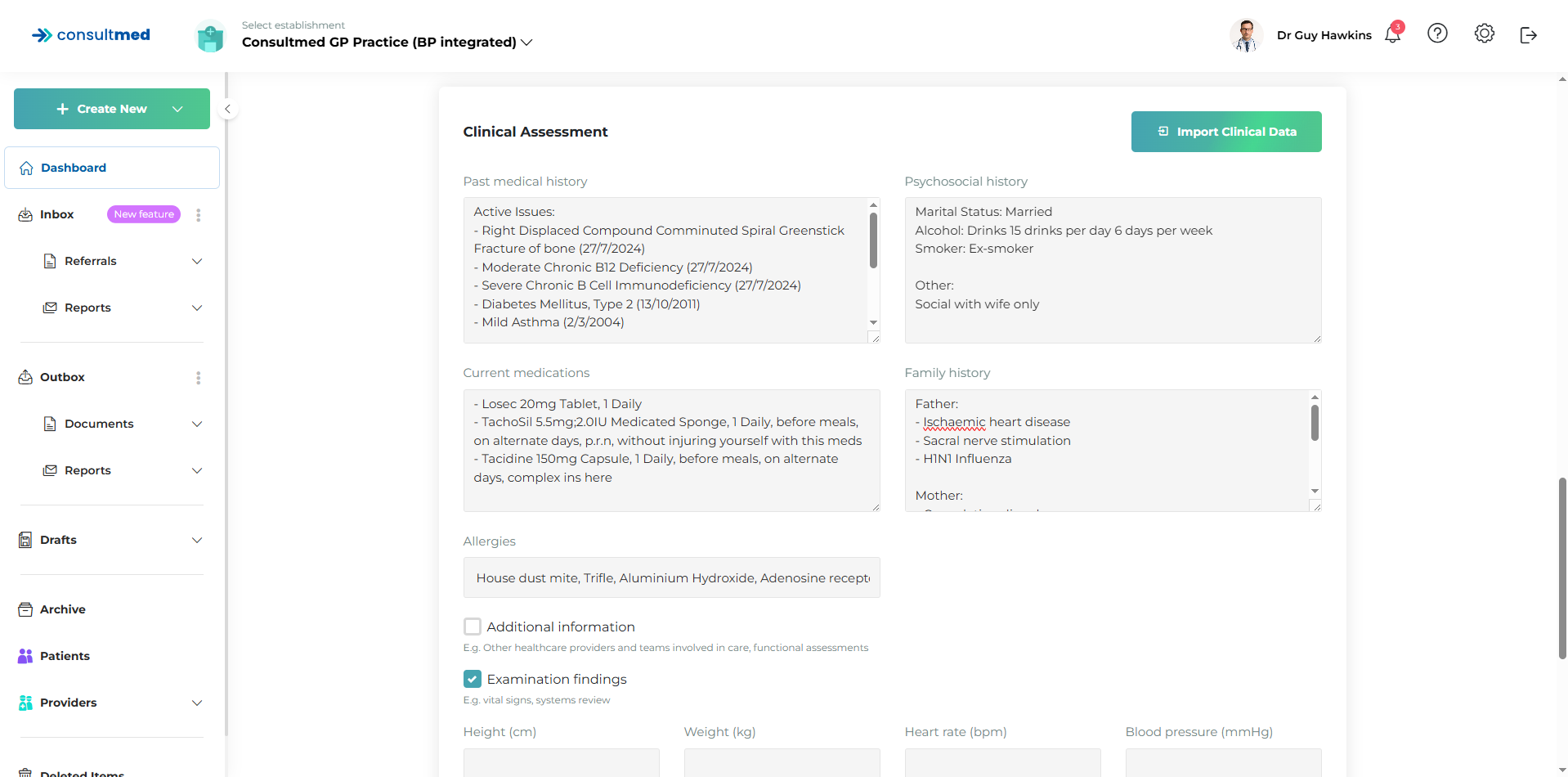
- In the Referral Form, when you reach the Clinical Assessment section, you can select the green Import Clinical Data to transfer all relevant clinical information (e.g. Past Medical History, Medications, Psychosocial and Family History, Allergies, Recent Observations) for your patient from Best Practice
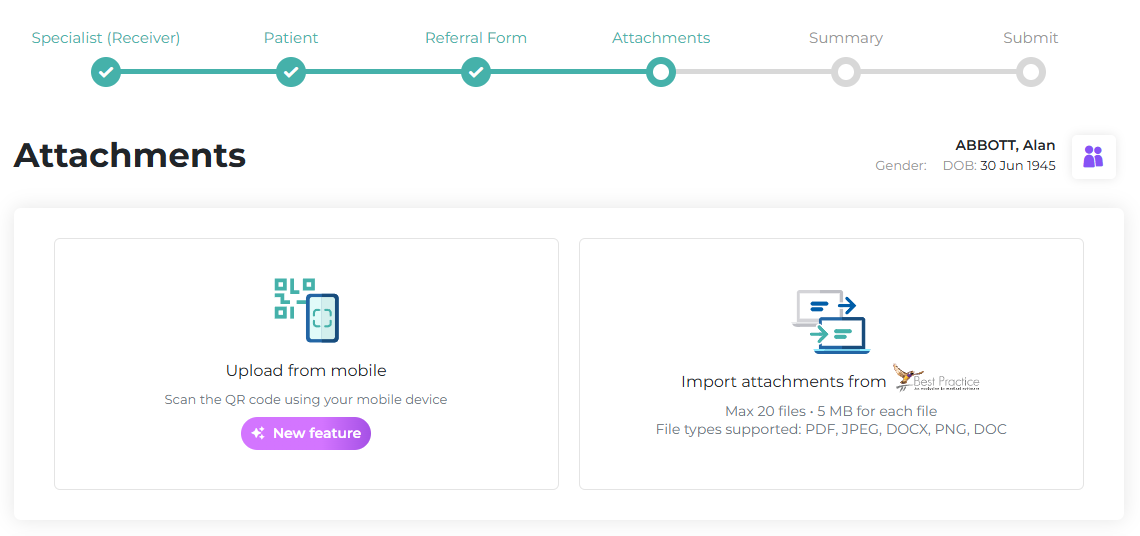
Import Attachments
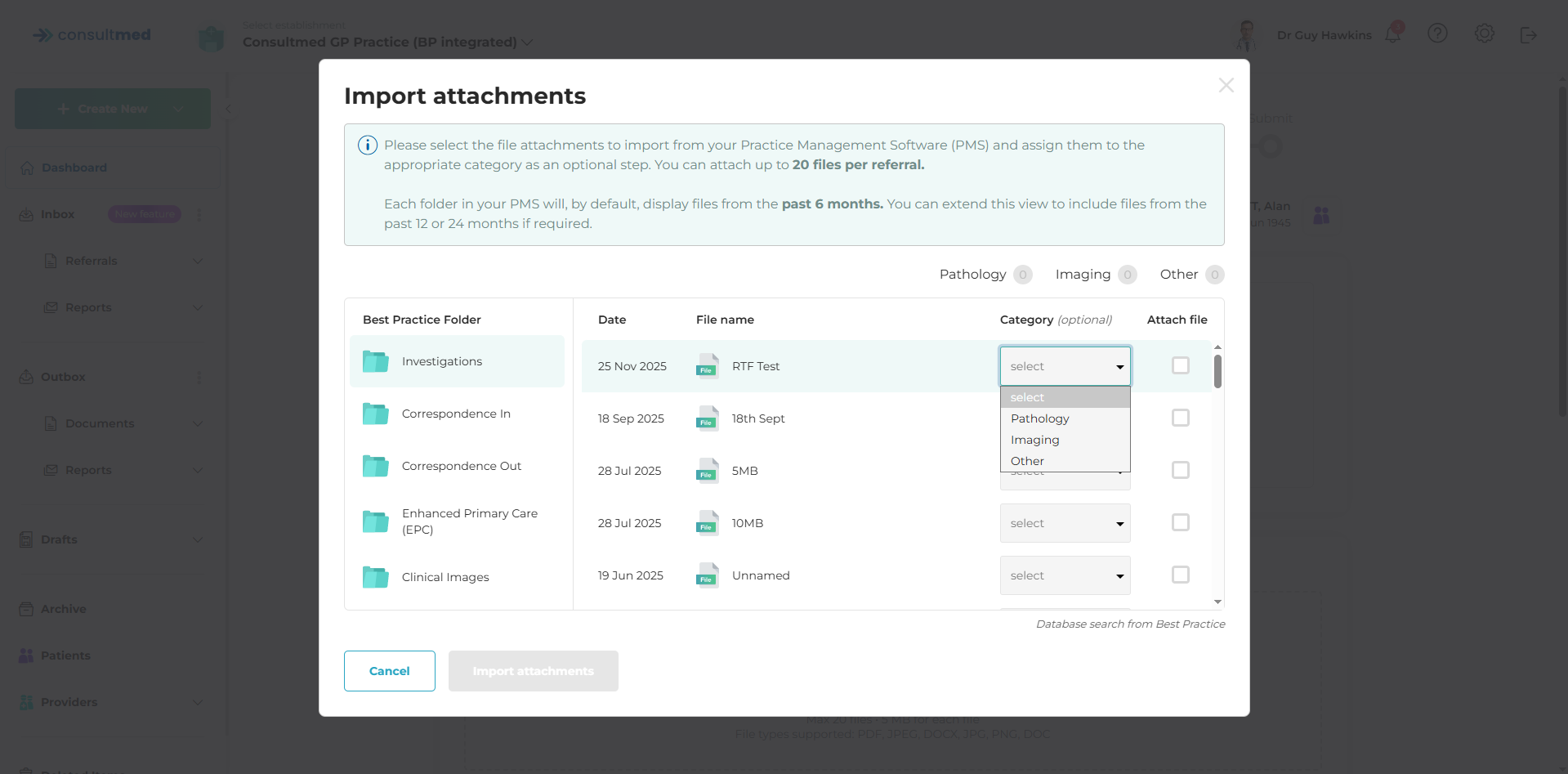
- Select Import Attachments to initiate a search of all attachments for your patient from your Bp Database. The Bp folders searched include Investigations, Correspondence In and Out, Enhanced Primary Care and Clinical Images.
- Select the attachments you wish to import into your referral. Assigning a Category (i.e. Pathology, Imaging) is optional.
- Select Import Attachments to import all assigned attachments into your referral
- Progress through the remainder of the referral workflow and select Submit
Correspondence Out Folder
- Once submitted in Consultmed, your referral will automatically be saved into your Correspondence Out Folder in Best Practice
Correspondence In Folder
- All Consultmed acknowledgements, Clinical Advice & Guidance™, reports and other correspondence relating to your referral will go into your Unchecked Results Inbox in Best Practice. Once you have checked them, they are by default saved into your Correspondence In Folder in Best Practice
Click here to view on Vimeo
Troubleshooting: Bp Premier Orchid SP2 compatibility issue
Identified April 2025
Some Bp Premier customers using version Orchid SP2 (June 2024) or earlier may encounter an error when launching Bp Premier that affects third-party integrations, including Consultmed.
What does the error look like?
When attempting to connect the integration, an error message may appear as shown below:
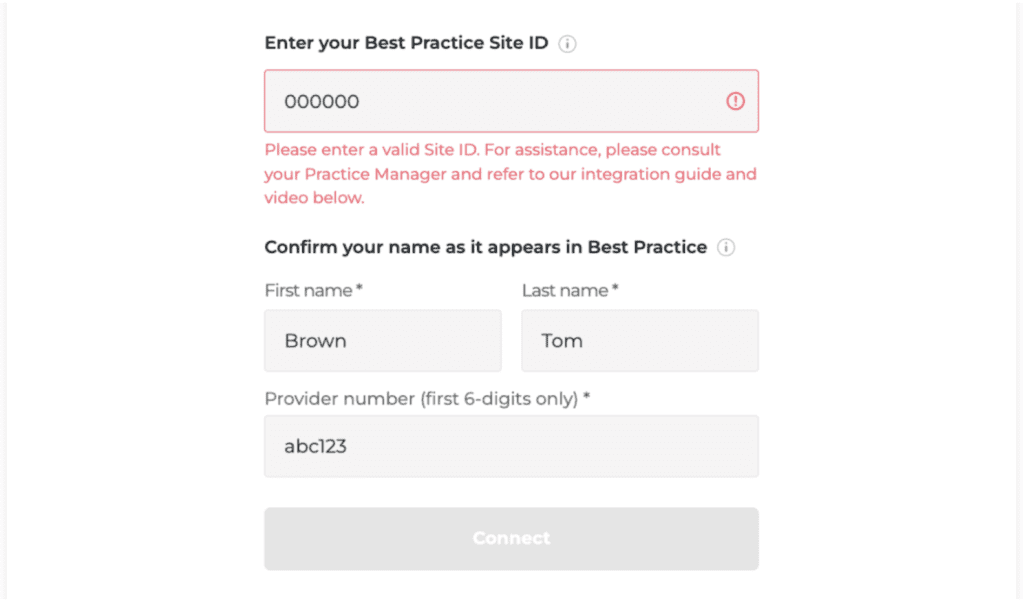
How to resolve it
Bp recommends the following solutions:
- Update Bp Premier to version Spectra or Spectra SP1. Installation instructions are available here
- If the practice is unable to complete the update, please contact BP customer support using the details provided below.
Contact Us
Best Practice PMS
- Reach out to the Best Practice team for any issues related to your PMS database or software
- Website: https://bpsoftware.net/contact/
- Contact: AU 1300 40 1111 | NZ 0800 40 1111
Halo Connect
- Reach out to Halo Connect for any general issues around installation and connectivity
- Website: https://haloconnect.io/contact-us
- Contact: (07) 3911 1360
Consultmed
- Reach out to the Consultmed team if you experience any issues with the Consultmed platform or require troubleshooting
- Website: https://www.consultmed.co/
- Contact: https://www.consultmed.co/contact/