Integrate Consultmed with MediRecords
To integrate Consultmed with MediRecords, you will need your establishment’s:
- MediRecords API Key (FHIR)
- MediRecords API (Connect)
These keys can be requested from the MediRecords Support Team:
- Email: support@medirecords.com
- Phone: 1300 103 903
The keys apply to the entire establishment and only have to be entered once.
Where do I begin?
This guide is divided into two sections to support you at different stages of your Consultmed journey.
- Section 1A: For New users setting up Consultmed for the first time
- Section 1B: For Existing users setting up MediRecords integration
- Section 2: How to integrate Consultmed with MediRecords
Section 1A. As a New User
Create your Consultmed Account
- Visit www.consultmed.co, then click ‘Create account’.
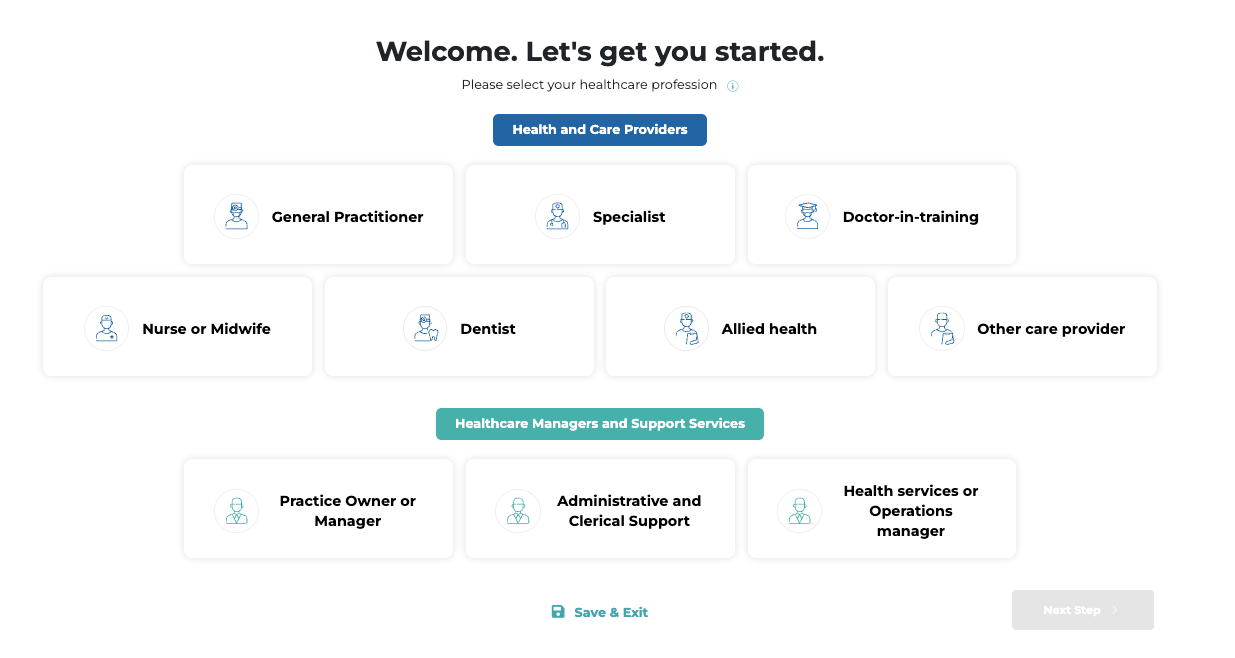
- Choose an account type that matches your role within your health or care team.
- Enter your professional details
- Search for your establishment by name or address, or add a new establishment by selecting ‘+Add Practice’
- Enter your registration details. You also have the option to add a signature or profile image to your account
- When prompted to Connect Practice Management software, select ‘MediRecords’
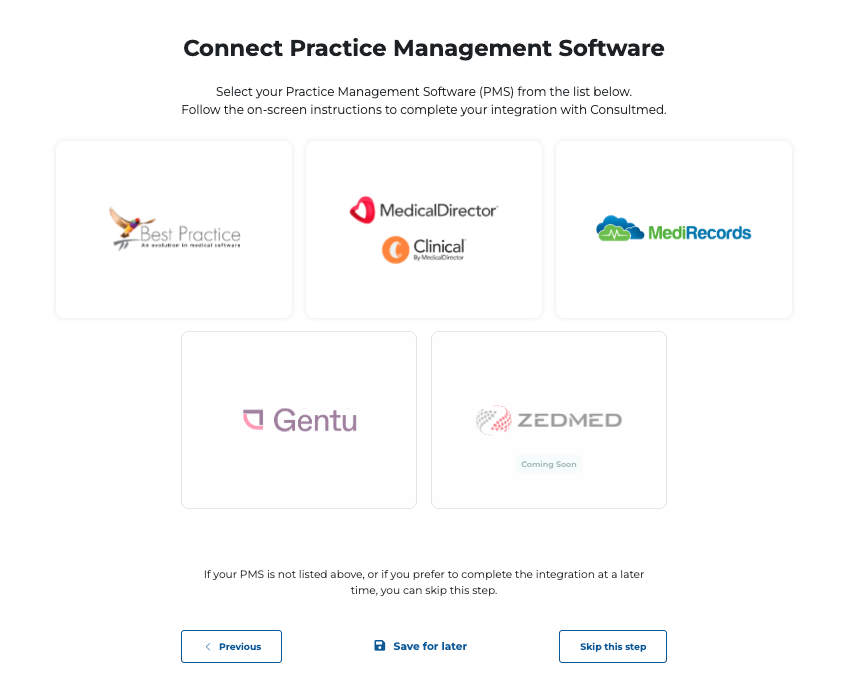
Now proceed to Section 2 if you would like to integrate MediRecords while setting up your new Consultmed account.
Tooltip: You can skip this step and complete the integration later after registration. To return to this step, please refer to Section 1B.
Once your integration is connected, please complete your registration.
- Carefully review and agree to Consultmed’s Terms & Conditions
- Select ‘Complete Registration’ to finalise your account setup
- Configure Multi-Factor Authentication (MFA) to ensure account privacy and security
Your Consultmed registration and MediRecords integration are now complete.
Section 1B. As an Existing Consultmed User
Tooltip: The Consultmed and MediRecords integration only needs to be set up once for your practice using your API keys.
Configure MediRecords from ‘User Settings’
- Once you have signed in to your Consultmed account, go to ‘User Settings’ by selecting the cog wheel icon in the top right corner of the screen.
- Then select ‘Software Integrations‘ and choose ‘Configure’ on the MediRecords card.
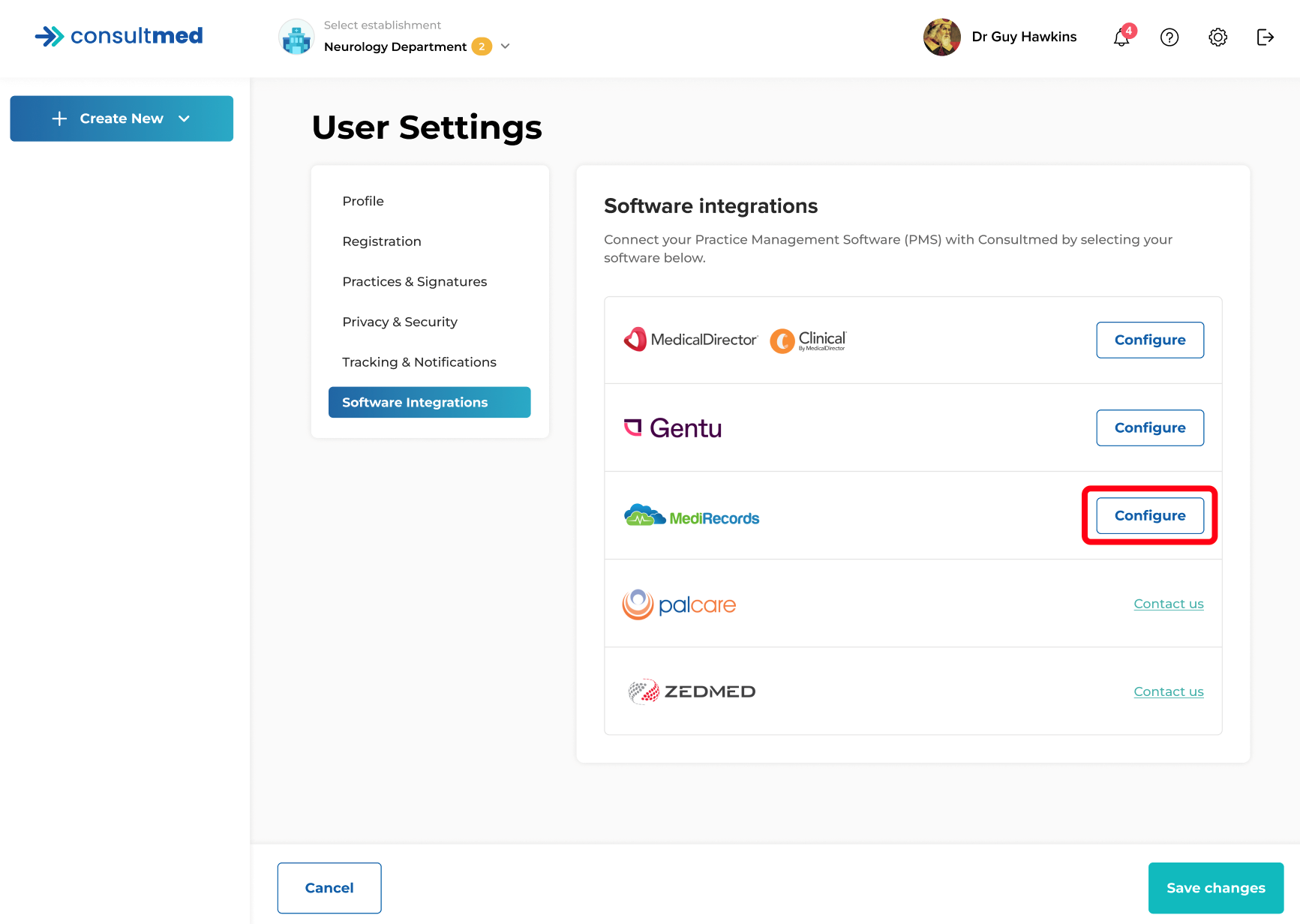
To continue with the integration, please proceed to Section 2 below.
Section 2. Integrate with MediRecords
Step One
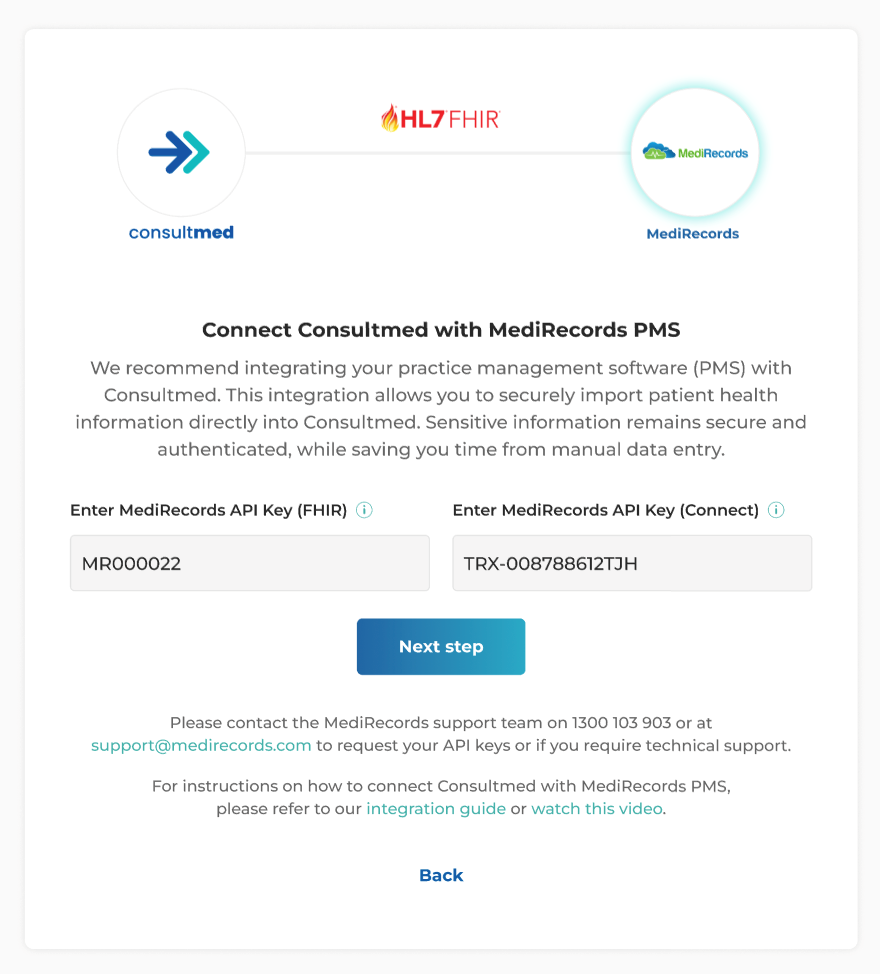
Enter MediRecords API Keys
- Enter the following details:
- MediRecords API Key (FHIR)
- MediRecords API Key (Connect)
- The API keys can be requested from the MediRecords Support Team. Contact the team via email (support@medirecords.com) or by phone (1300 103 903). The keys apply to the entire establishment and only have to be entered once.
- Enter the API keys in their respective fields and click ‘Next Step’.
Step Two
Select Practice and complete connection details
- Select your MediRecords practice from the dropdown
- Ensure this matches your Consultmed establishment
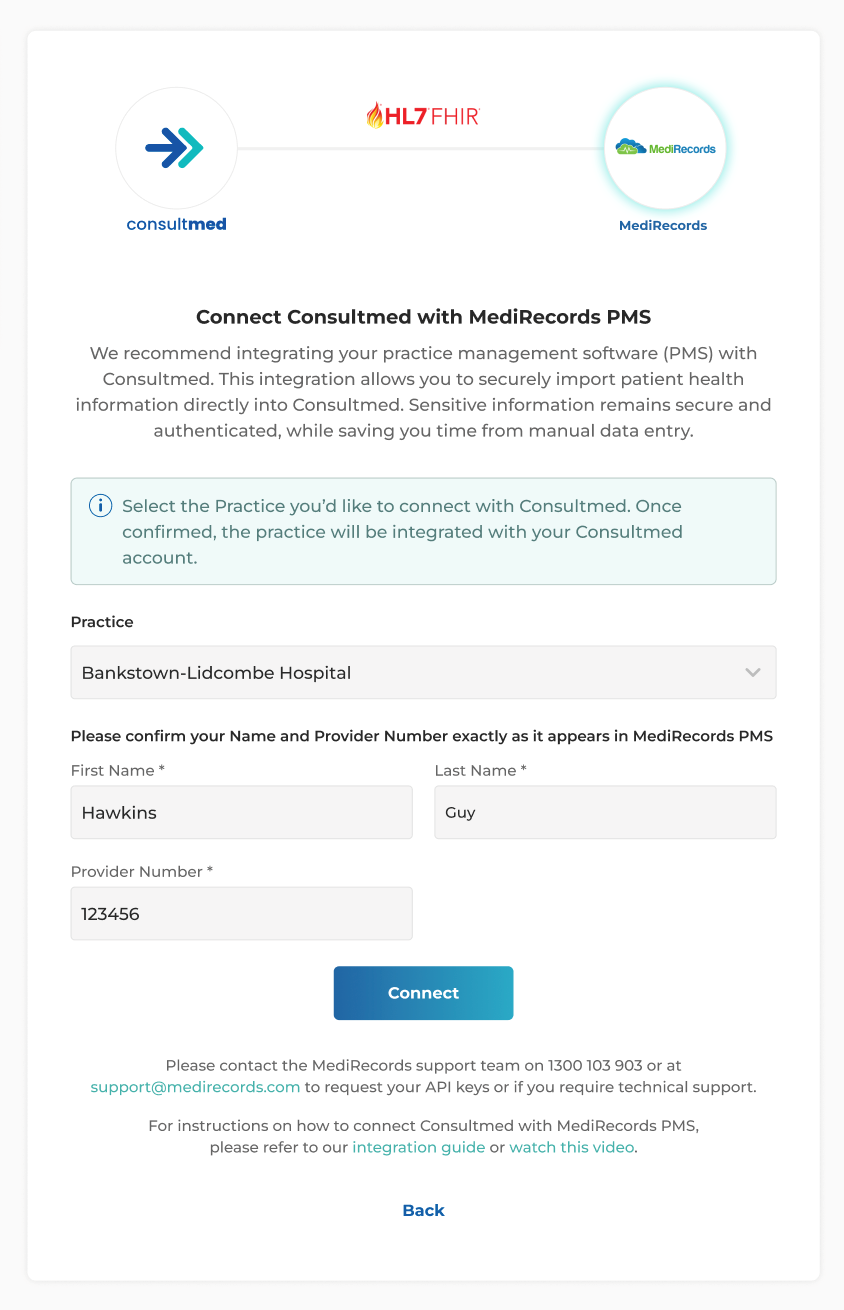
- Confirm your First Name, Last Name and Provider Number exactly as they appear in MediRecords.
- Important:
- Provider numbers are mandatory for GPs, NPs and non-GP specialists
- Provider numbers are not required for Practice Managers
- Once complete, select ‘Connect’.
Tooltip: When you invite other users to your establishment, the API keys and Practice selection will already be completed for them and cannot be changed.
This means they can start using the MediRecords integration across your practice without needing to set it up again.
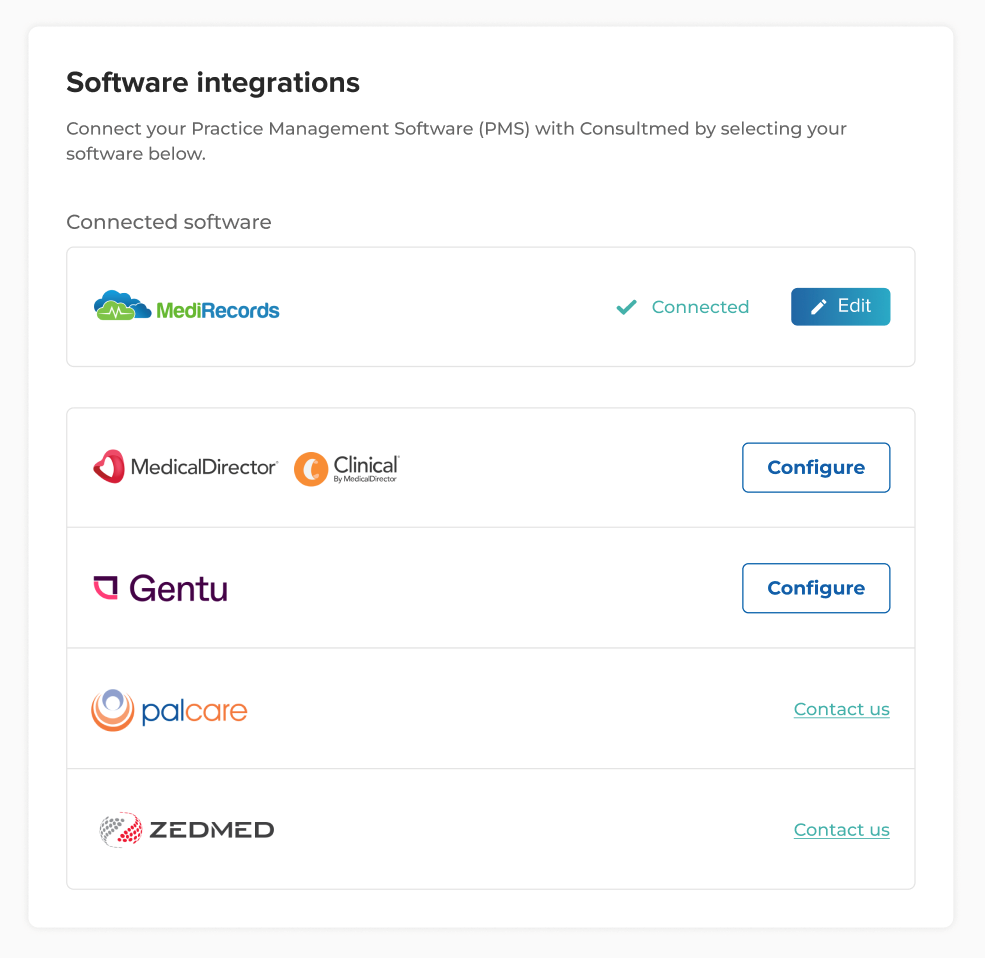
Once the integration is complete, a ‘Connected’ status will appear. This confirms that the integration has been successfully set up for your establishment.
Step Three
Enable Consultmed in MediRecords
To continue with the integration, please proceed to Section 2 below.
- From your MediRecords account, navigate to ‘Settings’ and then ‘Partner Products’
- Locate Consultmed and toggle it On
- Once enabled, the integration setup will be completed in MediRecords

Successful connection
Once Consultmed has been toggled On in MediRecords, the integration setup is complete and ready to use for your establishment in Consultmed.
Contact us
MediRecords PMS
- Reach out to the MediRecords team for any issues related to your PMS database or software
- Email Address: support@medirecords.com
- Contact: AU 1300 103 903
Consultmed
- Reach out to the Consultmed team if you experience any issues with the Consultmed platform or require troubleshooting
- Website: https://www.consultmed.co/
- Contact: https://www.consultmed.co/contact/