Integrate Consultmed with MedicalDirector Clinical
To integrate Consultmed with MedicalDirector Clinical, download the Consultmed sidebar app from the MedicalDirector Clinical widget store. After installing, create a Consultmed account and follow the prompts to complete the setup.
Definitions
Consultmed web app
- Consultmed web-based portal available at: https://app.consultmed.co
Consultmed web widget
- Consultmed sidebar widget within MedicalDirector Clinical
Step One
Install Consultmed Sidebar Widget:
Follow the simple steps below or watch the video here (0:10)
Depending on your version of MedicalDirector Clinical, the Consultmed sidebar widget may already be pre-installed in your sidebar. If it’s not, you can easily add it using the following steps:
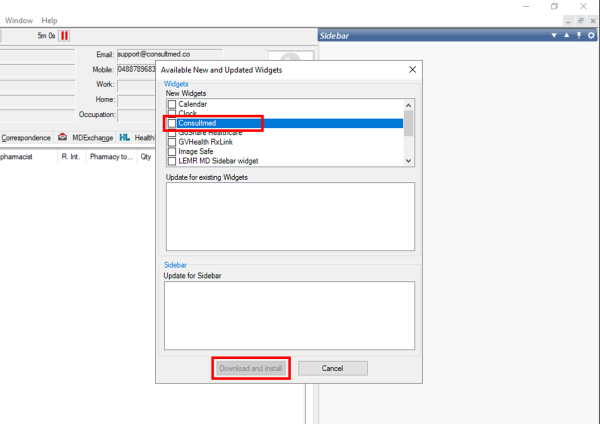
- In MedicalDirector Clinical, click the Settings icon > Check for New/Updated Widgets on the sidebar to open the list of available widgets.

- Click Consultmed from the available list.
- Click Download and install.
- Once installed, the Consultmed widget will appear in the sidebar.
- Click the Consultmed icon to launch the widget.
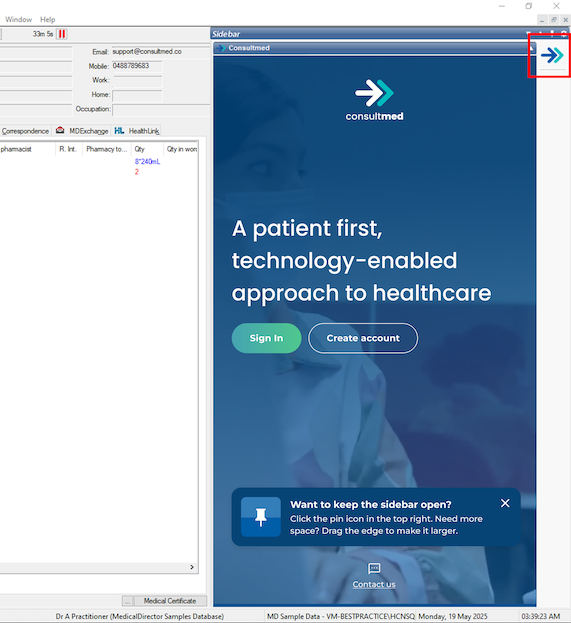
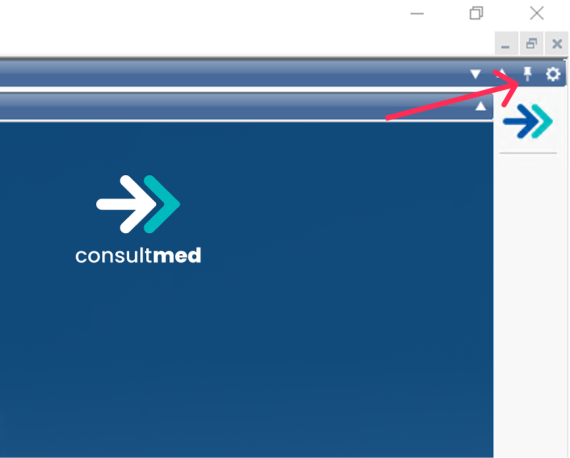
Want to keep the sidebar open?
- Click the pin icon in the top right to keep the sidebar open
- Drag the edge to make it larger
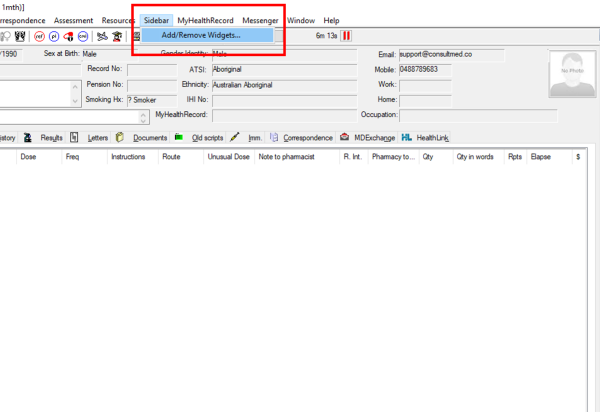
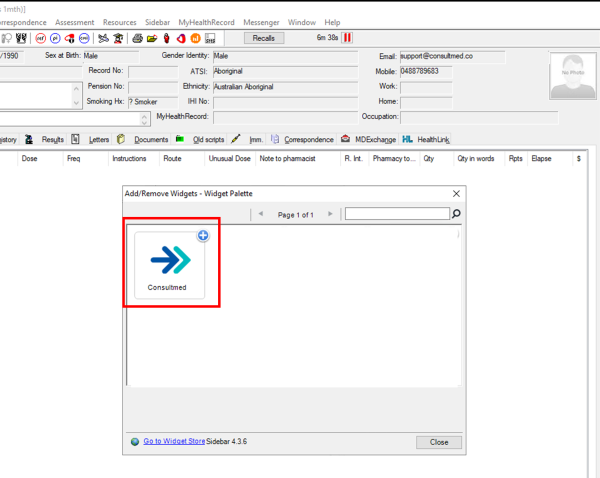
If the Consultmed widget is already pre-installed in MedicalDirector Clinical, you can simply add it to your sidebar:
- Go to Sidebar > Add/Remove Widgets and select Consultmed from the list.
- Click the Consultmed icon to launch the widget.
Step Two
Integrating with Consultmed Widget: As a New User
Follow the simple steps below or watch the video here (0:52)
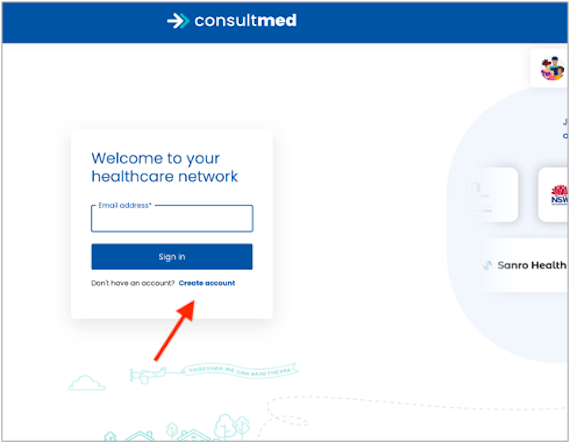
- Open the Consultmed widget and click Create account
- Consultmed web app will open in a separate browser
- In the web app, click Create account and follow the prompts
Tool Tip: Each user should have their own Consultmed account to maintain privacy and security through Multi-Factor Authentication (MFA).
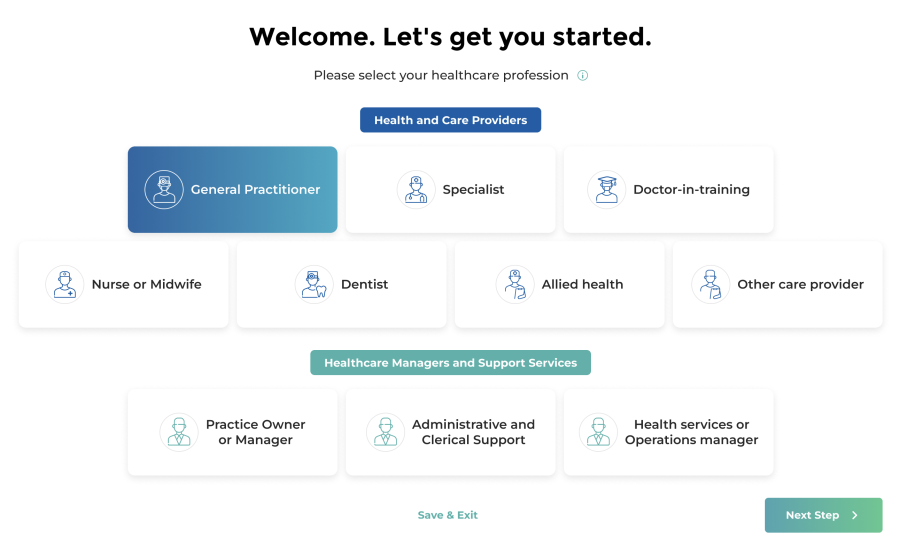
- Choose an account type that matches your role within your health or care team
- Enter your professional details
- Search for your establishment by name or address, or add a new establishment by selecting + Add Practice
- Enter your registration details. You also have the option to add a signature or profile image to your account
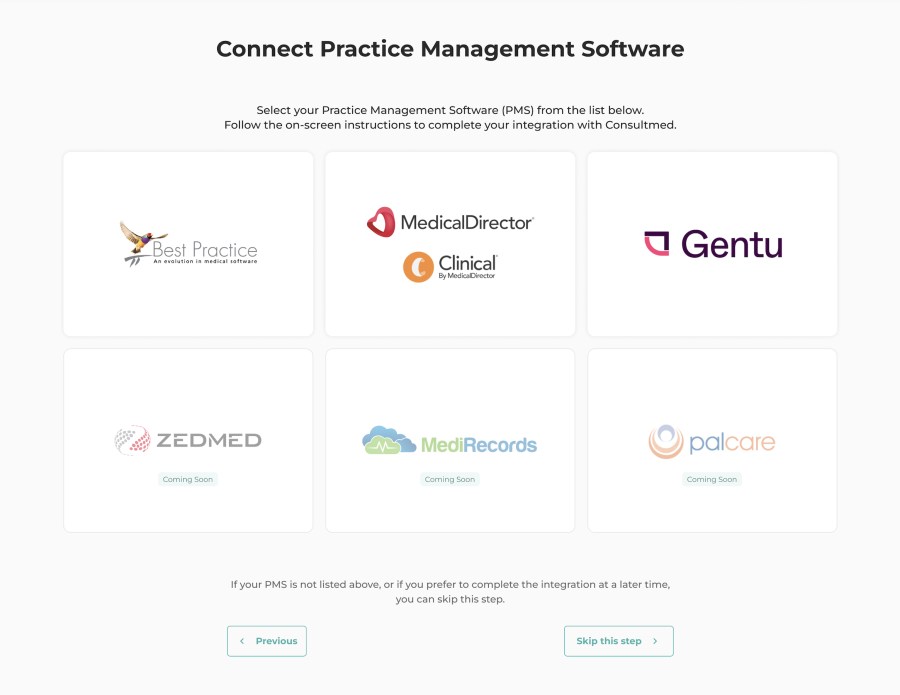
- Skip the Connect Practice Management Software step
- This step is not necessary when integrating MedicalDirector Clinical with Consultmed widget
Complete Registration
- Carefully review and agree to Consultmed’s Terms & Conditions
- Select Complete Registration to finalise your account setup
- Configure MFA to ensure account privacy and security
Return to the Consultmed widget in your sidebar.
- Click Sign in.
- A unique 8-character code will appear both in the Consultmed widget and a ‘Device Confirmation’ screen will automatically open in a new browser
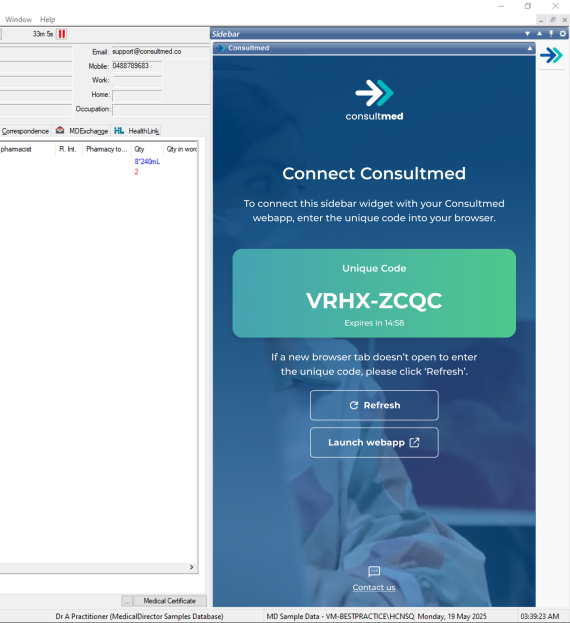
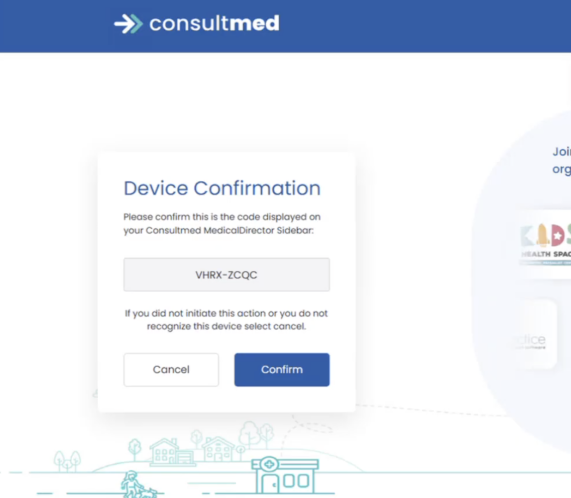
- Confirm the unique code to complete pairing of the Consultmed widget with the web app
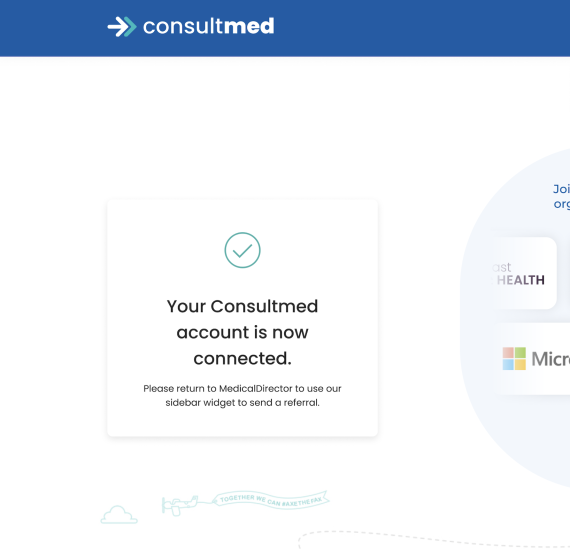
- Return to MedicalDirector Clinical and your linked establishment (primary place of practice) will appear in the Consultmed widget
- Click to confirm your establishment
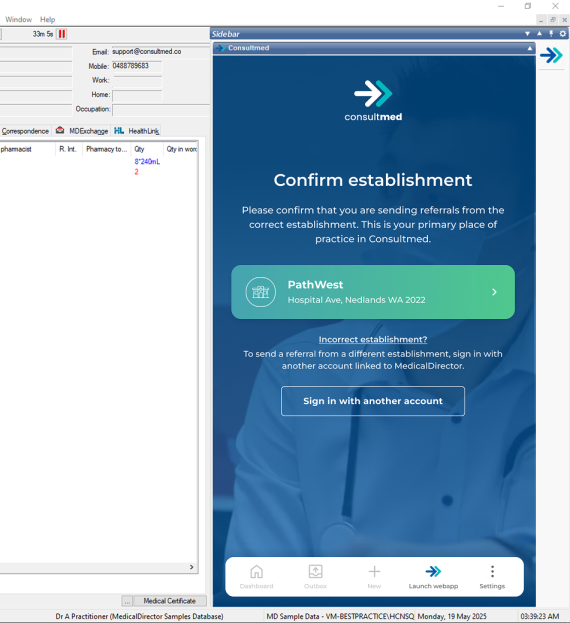
- Enter your MedicalDirector Clinical Practice ID and submit to complete the integration.
- Your establishment (primary place of practice) in Consultmed is now linked to your account in MedicalDirector Clinical
- Practice ID confirmation is only required once at the time of setting up the integration
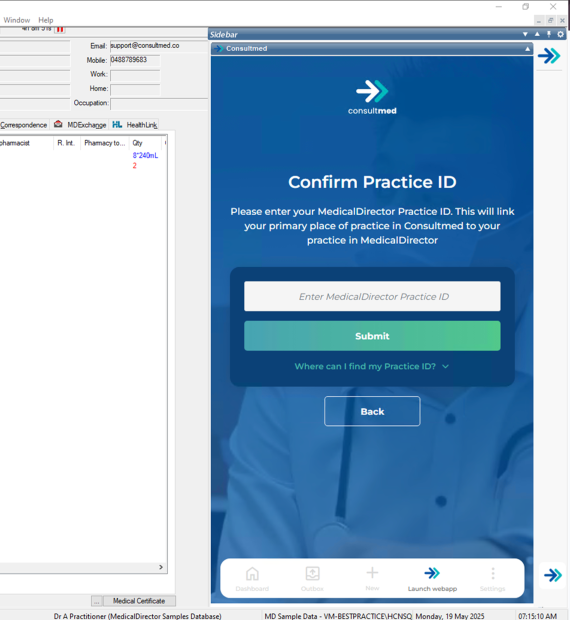
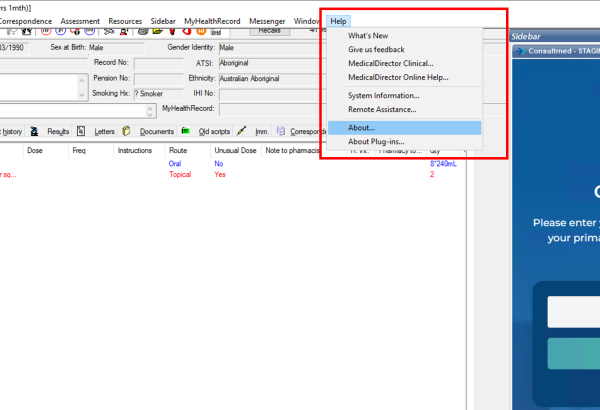
Where can I find my Practice ID?
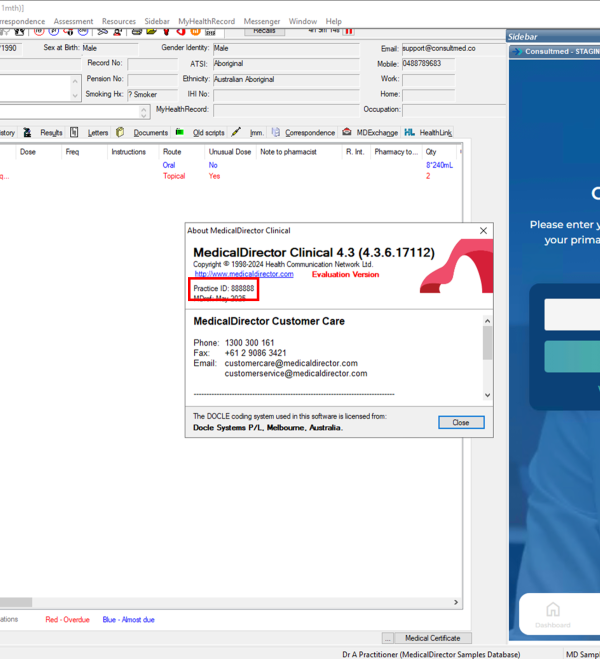
- In MedicalDirector Clinical, at the top of your menu screen, go to the Help > About
- Practice ID will be displayed in the ‘About’ pop-up box.
- Copy and paste, or manually enter the Practice ID in the Consultmed Widget
Integrating with Consultmed widget: As an Existing User
Follow the simple steps below or watch the video here (3:11)
- Click Sign in

- A unique 8-character code will appear both in the Consultmed widget and the web app
- Click Confirm to continue to login step
- Sign in with your existing Consultmed account details
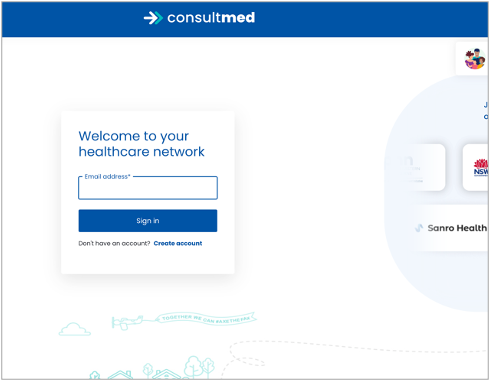
- After successful login, the pairing of the Consultmed widget and web app is complete
- Return to MedicalDirector and your linked establishment (primary place of practice) will appear in the Consultmed widget
- Click to confirm your establishment
- Enter your MedicalDirector Clinical Practice ID and submit to complete the integration.
- Your establishment (primary place of practice) in Consultmed is now linked to your account in MedicalDirector Clinical
- Practice ID confirmation is only required once at the time of setting up the integration
Where can I find my Practice ID?
- In MedicalDirector, at the top of your menu screen, go to the Help > About
- Practice ID will be displayed in the ‘About’ pop-up box.
- Copy and paste, or manually enter the Practice ID in the Consultmed Widget
Click here to view on Vimeo
Contact Us
MedicalDirector Clinical PMS
- Reach out to the MedicalDirector Clinical team for any issues related to your PMS database or software
- Website: https://www.medicaldirector.com/support
- Contact: AU 1300 300 161
Consultmed
- Reach out to the Consultmed team if you experience any issues with the Consultmed platform or require troubleshooting
- Website: https://www.consultmed.co/
- Contact: https://www.consultmed.co/contact/